

- User ID
- 1
- Joined
- 7 Jan 2019
- Messages
- 1,766
- Reaction score
- 145
- Points
- 63
For Windows
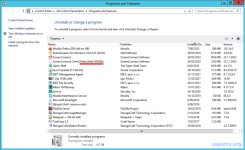
From the "Add/Remove Programs" area of the Control Panel, remove the entry, "ScreenConnect Client (xxxxxxxxxxxxxxxx)" where xxxxxxxxxxxxxxxx is the thumbprint which is unique to your ScreenConnect installation.
You can also remove the access client manually via the administrator command prompt:
04/08/2025 Update: An alternative method to locate the ID, along with the output from the command shown above:

This approach has proven effective even when the ScreenConnect client is severely corrupted or partially removed—such as by antivirus software or manual deletion.
For Mac
The access client is installed on your OSX device at /opt/screenconnect-xxxxxxxxxxxxxxxx where xxxxxxxxxxxxxxxx is the thumbprint which is unique to your ScreenConnect installation.
Remove the listed files and directories to uninstall the access client.
20/04/2024: Update courtesy of @jabba:
For those using later versions of macOS (Sonoma), Jeff has provided updated removal commands. Below are the steps to ensure ConnectWise Control is completely uninstalled:
Kudos to Jeff for the update and for helping ensure this guide stays relevant!
For Linux
The access client is installed on your Linux device at /opt/screenconnect-xxxxxxxxxxxxxxxx where xxxxxxxxxxxxxxxx is the thumbprint which is unique to your ScreenConnect installation.
To remove the access client from a Linux device, enter one of the following (depending on your distribution):
or:
From the "Add/Remove Programs" area of the Control Panel, remove the entry, "ScreenConnect Client (xxxxxxxxxxxxxxxx)" where xxxxxxxxxxxxxxxx is the thumbprint which is unique to your ScreenConnect installation.
You can also remove the access client manually via the administrator command prompt:
Code:
wmic product where name="ScreenConnect Client (xxxxxxxxxxxxxxxx)" call uninstall /nointeractive04/08/2025 Update: An alternative method to locate the ID, along with the output from the command shown above:
This approach has proven effective even when the ScreenConnect client is severely corrupted or partially removed—such as by antivirus software or manual deletion.
For Mac
The access client is installed on your OSX device at /opt/screenconnect-xxxxxxxxxxxxxxxx where xxxxxxxxxxxxxxxx is the thumbprint which is unique to your ScreenConnect installation.
Remove the listed files and directories to uninstall the access client.
- Stop the ScreenConnect Client service on that device:
Bash:launchctl unload /Library/LaunchAgents/screenconnect-xxxxxxxxxxxxxxxx-onlogin.plist - Delete the service definitions (both the onlogin and prelogin ones):
Bash:rm -v /Library/LaunchAgents/screenconnect-xxxxxxxxxxxxxxxx-*.plist - Delete the ScreenConnect Client files:
Bash:rm -rv /opt/screenconnect-xxxxxxxxxxxxxxxx.app
Bash:
ls -l /Library/LaunchAgents/screenconnect-*20/04/2024: Update courtesy of @jabba:
For those using later versions of macOS (Sonoma), Jeff has provided updated removal commands. Below are the steps to ensure ConnectWise Control is completely uninstalled:
Bash:
sudo launchctl bootout system/connectwisecontrol-xxxxxxxxxxxxxx
sudo rm /Library/LaunchAgents/connectwisecontrol-xxxxxxxxxxxxxx*.plist
sudo rm -r /Applications/connectwisecontrol-xxxxxxxxxxxxxx.appFor Linux
The access client is installed on your Linux device at /opt/screenconnect-xxxxxxxxxxxxxxxx where xxxxxxxxxxxxxxxx is the thumbprint which is unique to your ScreenConnect installation.
To remove the access client from a Linux device, enter one of the following (depending on your distribution):
Bash:
dpkg -r screenconnect-xxxxxxxxxxxxxxxx
Bash:
rpm -e screenconnect-xxxxxxxxxxxxxxxx
Last edited:
 ScreenConnect Client Broke After AV False Positive? Here’s What Actually Happens
 Three States:
 Corrupted (after AV interference): 12 registry matches
 After WMIC uninstall: 5 matches left (cleaned up but not fully)
 Fresh reinstall: 15 matches (normal healthy install)
 No uninstall key in WOW6432Node — WMIC & GUI tools can’t see it
 Registry still holds enough to extract the client ID
 The Trick:
 I’ve added this outcome to the